
Remix a sample
Written against the alpha (September 2026). The screens may change without notice. The app is currently in Japanese; labels are quoted as they appear, with translations.
The six samples on showcase open directly in ESKEES Studio. You don't need to read any script — change the images and a few numbers and it's your game.
ESKEES Studio is opening to people on a waitlist. Sign up from 「これを改造してみる」 (Try remixing this) on a sample's page, and you can open that sample as soon as you're let in.
1. Open the sample
- Play a sample on showcase, then press 「これを改造してみる」→「Studio で開く」 (Open in Studio) on the right.
- Studio starts with the sample open. (If you haven't been let in yet, you'll land on the waitlist page instead.)
- Save your own copy right away with 「ファイル ▾」→「プロジェクトを保存」 (Save project).
2. Swap an image
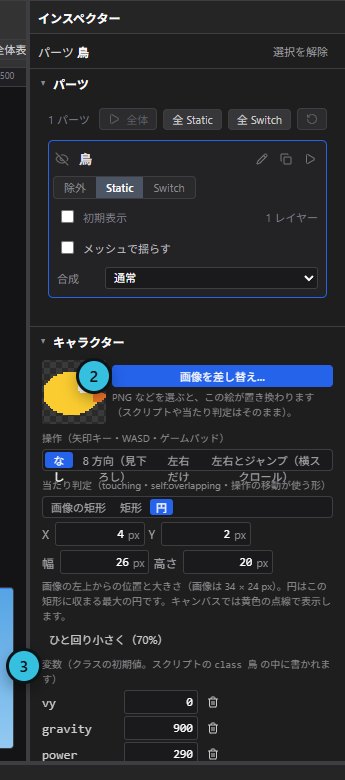
- Select the part to change in the hierarchy on the left (for Patapata, 「鳥」 — the bird).
- Open 「キャラクター」 (Character) in the inspector and choose a PNG with 「画像を差し替え…」 (Replace image). The script and hitbox stay as they are.
- For a character with several frames (idle, walk …), use 「キャラクターを差し替え…」 (Replace character) in the same place to swap all frames at once — from a library asset (matched by frame name, otherwise in order) or a sprite sheet file. Frame names stay the same, so the script keeps working. To change a single frame, click that frame's thumbnail.
- If the new image is a different size, adjust 「当たり判定」 (Hitbox) in the same section. 「ひと回り小さく(70%)」 (70% size) makes collisions feel fairer.
3. Change the numbers
- At the bottom of the same Character section is 「変数」 (Variables) — the character's weight, speed and so on.
- Change a value, try it with 「テストプレイ」 (Test play), and find what feels right. Press Esc to stop.
- Stage goals and overall speed are the
varnumbers at the very top of 「ロジック」→「テキスト」 (Logic → Text).
4. Publish
- Export with 「エクスポート ▾」→「.eskx をエクスポート」.
- Upload the file and a thumbnail from 「作品を投稿」 (Post a work) on showcase. Mention which sample you remixed in the description.
What to change in each sample
Patapata
- Images — the bird (「鳥」), pipes (「土管」), clouds (「雲」), ground (「地面」) and sky (「空」).
- Weight and flap — the bird's variables
gravity(higher falls faster) andpower(higher flaps higher). - Hitbox — the bird's hitbox is a circle; resize it if you change the image.
Catch the Stars
- Images — the basket (「かご」) and the stars (「星」).
- Movement — the basket is set to move left/right in the inspector's Character section; its hitbox is there too.
- Stages —
goal1–goal3(stars to catch) andfall1etc. (fall speed) at the top of Logic → Text.
Tetris
- Stages —
goal1–goal3(lines to clear) andfall1–fall3(drop interval; smaller is faster) at the top of Logic → Text. - Block colors — replace the images of the parts I, O, T … to change how the blocks look.
Kasanete 2048
- Tile images — the 「タイル」 part has one frame per number (「2」, 「4」 … 「8192」). Show the frame you want in the inspector, then use 「画像を差し替え…」 (Replace image) to swap just that number.
- Board and empty cells — replace the 「盤」 (board) and 「セル」 (cell) images.
- Rules —
boardSize(3–6),goal(target number),four(chance of a 4, in %) andslide(tile animation seconds) at the top of Logic → Text.
ARROW RUN
- Hero — Ranger moves left/right via the Character section (speed 310). Swap its image there too.
- Enemy strength — Enemy's variables
hp(health) andgrow(how much health grows as you advance).
NIGHT SURVIVOR
- Hero — moves in 8 directions with a circular hitbox. Its look is 12 frames (idle and walk, left and right); swap them all with 「キャラクターを差し替え…」 (Replace character).
- Hero stats and starting weapon — set by its row in the 「キャラクター」 (Character) table: speed, max HP and starting weapon. Select Hero and the inspector's 「表のデータ」 (Table data) shows that row and the linked 「武器」 (Weapon) row (power, interval and so on), editable in place. Set the starting weapon to 「回転刃」 to start with the spinning blade.
- Enemy strength — the variables of Ghoul, Bat, Brute and Reaper set each enemy's base strength.
For the whole of Studio, see Getting started with ESKEES Studio.